
Take a practice quiz
Select a course quiz, answer every question, submit it, and use the result to guide revision.
Course quizzes are formative practice. A result helps you find topics to review; it is not an official course grade unless your teacher explicitly says otherwise.
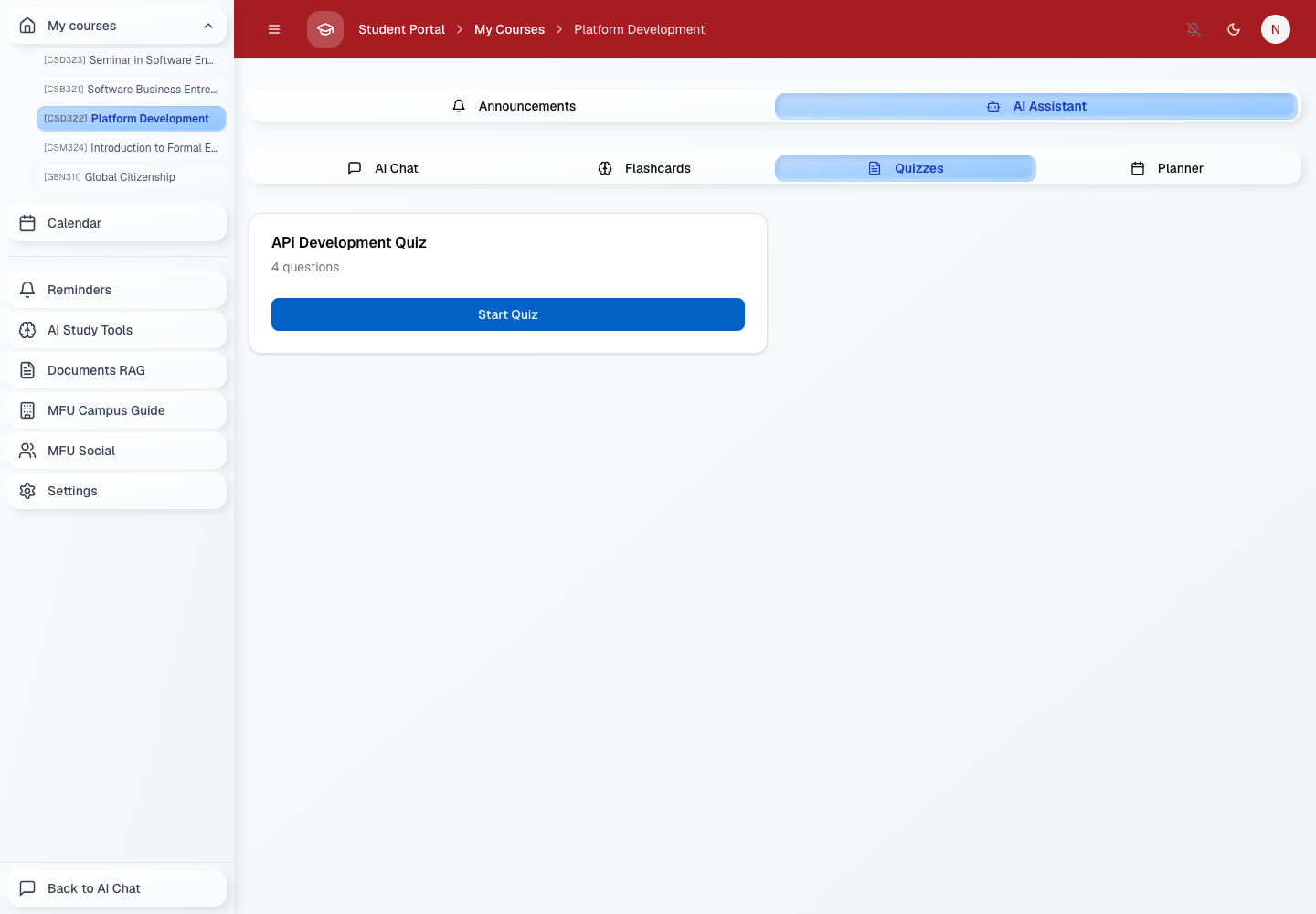
Start a quiz
- Open a course from My Courses or AI Study Tools.
- Choose AI Assistant, then Quizzes.
- Review the quiz title and number of questions.
- Select Start Quiz.
Answer and submit
Choose one option for every question. The Submit Quiz button remains unavailable until all questions have an answer.
Before submitting:
- answer from memory where possible;
- do not use AI Chat to reveal the answer during the attempt;
- note questions that felt uncertain, even if your choice may be correct.
Read the result
After submission, the page displays a percentage score. Correct answers are marked in green and incorrect selections in red. A score of 70% or above shows the positive completion state; lower scores prompt continued practice.
The color and score summarize this attempt. They do not prove mastery of the full topic.
Turn mistakes into study actions
- Write the topic behind each missed question.
- Return to the relevant course material.
- Ask for an explanation or a new example—not just the correct letter.
- Add a task to Study Planner.
- Try the quiz again only after reviewing.
Leave the quiz
Use Back to Quizzes to return to the list. Starting another quiz clears the answers and result from the current on-screen attempt.
No quizzes available
The teacher has not made a quiz available for the selected course. Confirm the course and return later, or use AI Chat to create ungraded practice questions from material you are permitted to use.